





Your ED Schedule
The number of shifts you are assigned is based on the agreement that your program has with our department and varies based on your specialty. We try to finalize the schedule approximately 60 days in advance of the start of the month, however, sometimes this is not possible. You will receive a login to Shift Admin to view your schedule, and the schedule will also be sent in the form of a PDF from the scheduling team.
If you have program-specific requirements that will happen during your rotation (ie ITE, clinic days, required conference, APR, etc), your program coordinator should communicate these restrictions to our scheduling team. The scheduling team begins creating the schedule at least 4 months in advance, so it is crucial that we are aware of your program-required restrictions.
You will receive a draft schedule approximately 2-3 months prior to the start of your rotation. You must review the draft schedule. It is your responsibility to make sure you are not scheduled for any duty hour violations or program-specific required dates and notify the scheduling team ASAP if you identify a violation or issue. Once the schedule is finalized, we are unable to move shifts around to accommodate these requirements, and you will be responsible for finding appropriate coverage or "swaps” for your shifts.
See Your Schedule
-
Go to the ShiftAdmin website
-
Username and password will be sent to you in the scheduling email that you receive prior to your rotation
Day-Off Requests
Unfortunately, due to the number of off-service rotators that we have in our departments each month and the acuity of the setting, we are unable to accommodate any specific day-off requests. You are more than welcome to make shift-swaps for the same shift type if you find that your FINAL schedule has dates that you would like to have off. Shift swaps must be approved by the EM Chief residents. See below for more rules about shift swaps.
Shift Swaps
Shift swap requests must be sent at a minimum of 48 hours prior to the start of the first shift involved in the swap (ideally at least 1 week in advance to allow time to verify the swap). Swaps that do not meet this minimum requirement will be denied. Swaps cannot be initiated until the final schedule is released (No swaps may be initiated based on the draft schedule).
The Emergency Department has different duty hour rules than all other rotations. Per the ACGME, residents on an emergency medicine rotation can not:
- Work more than 6 days in a row
- Work more than 60 hours per 7-day period
- Have fewer hours off than the length of the shift worked prior to starting their next shift.
- For example: if you work a 9 hour shift that starts at 5 p.m. and ends at 2 a.m., you cannot be scheduled to work another shift until 11 a.m. (9 hours after your prior shift ends based on a 9 hour shift length).
If you would like to swap a shift, you are responsible for directly contacting the resident and they must agree to the swap. Shift swaps can only be for the same shift type and must not violate any of the above duty hours.
Once you have found a swap that meets these requirements, email the EM Chiefs (emchiefs@uw.edu) and include the resident who has agreed to the swap in your email chain. Please do not email the entire scheduling team. The resident who has agreed to the swap must email to confirm they are willing to make the swap. The EM Chiefs will then approve the swap as long as the requested swap is within the appropriate time frame prior to the start of the first shift and does not violate ED duty hours as above.
If you have questions about a potential swap or have difficulty finding a swap, feel free to email the EM Chiefs for assistance. You can find the contact information for all of the residents who are rotating on the same block in the email that includes the final schedule.
Logging Duty Hours
- Visit the MedHub website
- Log in with your UW Net ID
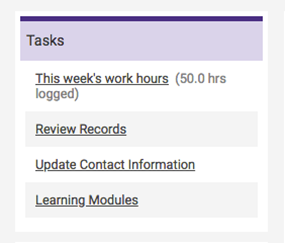
- On your MedHub home page, in the center column, there is a section called “Tasks”. Under this section, click “This week’s work hours”.
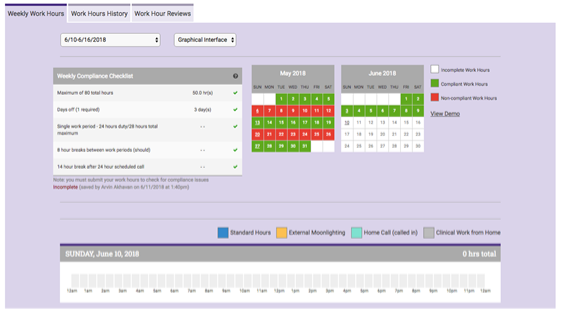
- The next screen looks like this (below). The top left drop down menu allows you to select which week you are logging hours for. For each day that you work, you can click to designate your start and stop times. These may already be preprogrammed for you, in which case, you only need to check them for accuracy.
-
At the bottom there are two buttons: “Save incomplete work hours” and “Submit duty hours”. If you have yet to finish the week, click the former. If you are done submitting work hours for the week, click the latter.
-
All hours must be submitted by the end of each week (Saturday)